Streamlining complexity in
form design
When I joined the Incident Response team, one of my first challenges was untangling a core feature inherited from our Transposit acquisition: Incident Types. This feature defined the fields shown during incident creation, but the flow was confusing, over-engineered, and not aligned with how users actually worked.
In this post, I’ll walk through how I redesigned the incident configuration experience. I focused on simplifying the interaction model, aligning it with the Harness design system, and improving clarity around field visibility and form-building.
The Problem: Three Steps Too Many
The original experience tried to do too much in one go.
Step 1: Field Configuration
You'd see a mix of default and custom fields. Each field could be edited for its type, description, whether it was required, and so on. You could also reorder them.

Step 2: Creation Form
You'd click "Edit Creation Form" and land in a screen that looked visually like 2 forms. It wasn’t clear what was a form preview and what was still part of configuration.
It was also quite hidden how to add elements to the form. The "Add" icon button was placed at the very bottom of the screen, so it wasn’t visible on first landing. Many users missed it entirely unless they scrolled all the way down. And even when they did find it, it included a number of oddly named or overly technical elements that didn’t clearly describe their purpose or how they’d behave in the form. It wasn’t obvious what something like “Generate block from field” actually did.
This added friction to an already confusing flow and made it harder for users to confidently customize their incident forms.

Step 3: Mapping (rarely used)
There was a manual field-mapping step to wire up webhooks directly instead of using automation. In practice, no one used this. It only added confusion.

On top of all that, the Transposit UI had issues. The form builder let you delete required fields, but wouldn’t let you save unless you added them back. There was no clear way to re-add fields if you changed your mind.

Design Goals
I had a few clear goals.
Simplify the mental model. Each step should do one thing well. Previously, since there hadn’t been a designer on the team, the flow was confusing and out of order. Even when the user wanted to accomplish steps in the natural sequence of 1 → 2 → 3, the product forced them into 3 → 1 → 2.
Support real-world workflows. This included things like the ability to hide prefilled fields during incident creation.
Make it feel like a proper Harness experience. Not just a visual facelift but better interaction patterns aligned with the rest of the platform.
Step 1: Define Fields
The first step focuses on managing your incident fields.
You see default fields like "Incident Title" and "Severity" along with any custom fields you’ve created. You can reorder fields, add new custom ones, edit their properties, or remove those that are no longer needed.
I also introduced a visibility toggle to help with prefilled fields. For example, if a field like a Jira ticket ID is populated automatically by a webhook or runbook, you might not want it to appear on the incident creation form. The toggle makes it easy to hide those fields from the user-facing view while still keeping them active in the background.
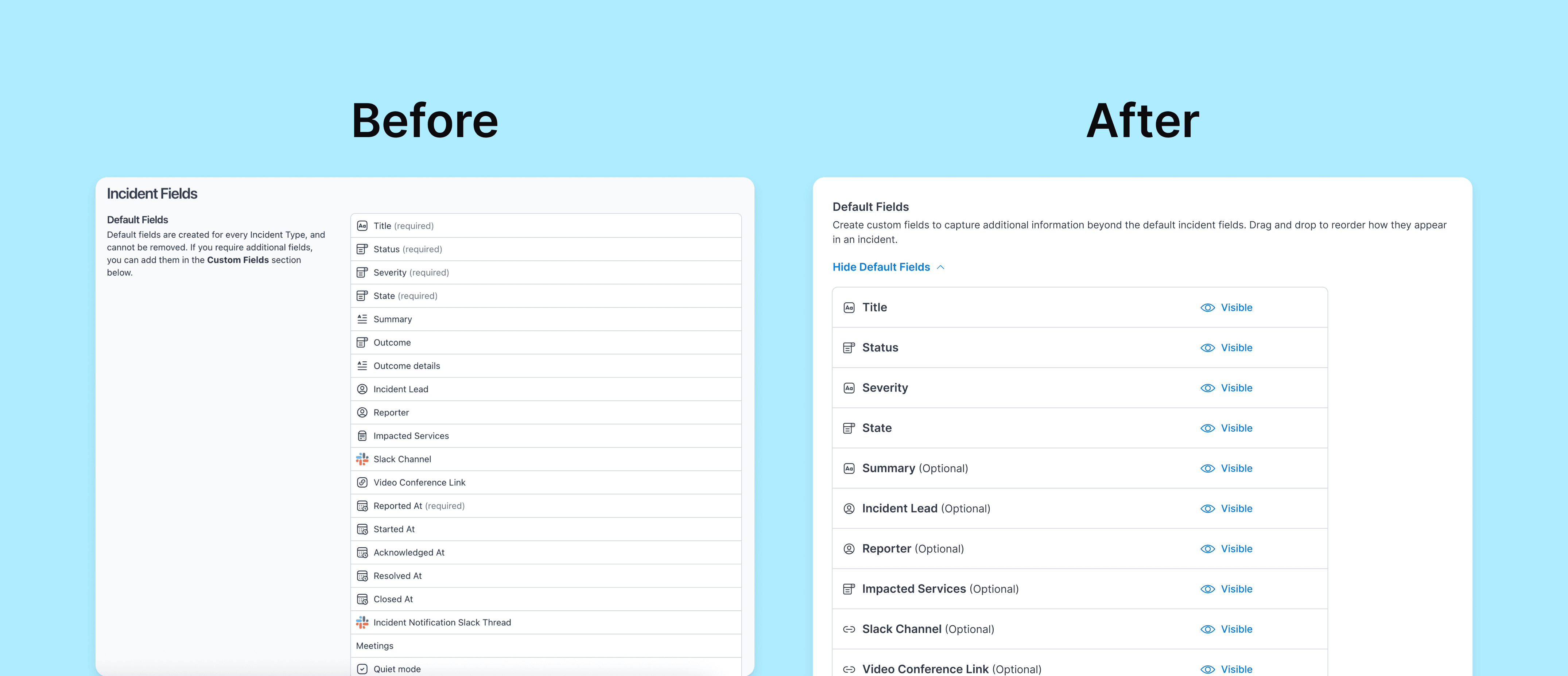
This step gives cloud engineers flexibility in shaping the underlying structure of incident types without overwhelming responders with unnecessary inputs during creation.

Step 2: Build the Creation Form
Now it's time to define what responders will see when they create an incident.
In this step, you get a real visual preview of the form. I made sure it looks like an actual form, not just another config screen. Fields appear as pills in a left-hand panel. You can drag and drop to reorder them, and the form preview updates live on the right.
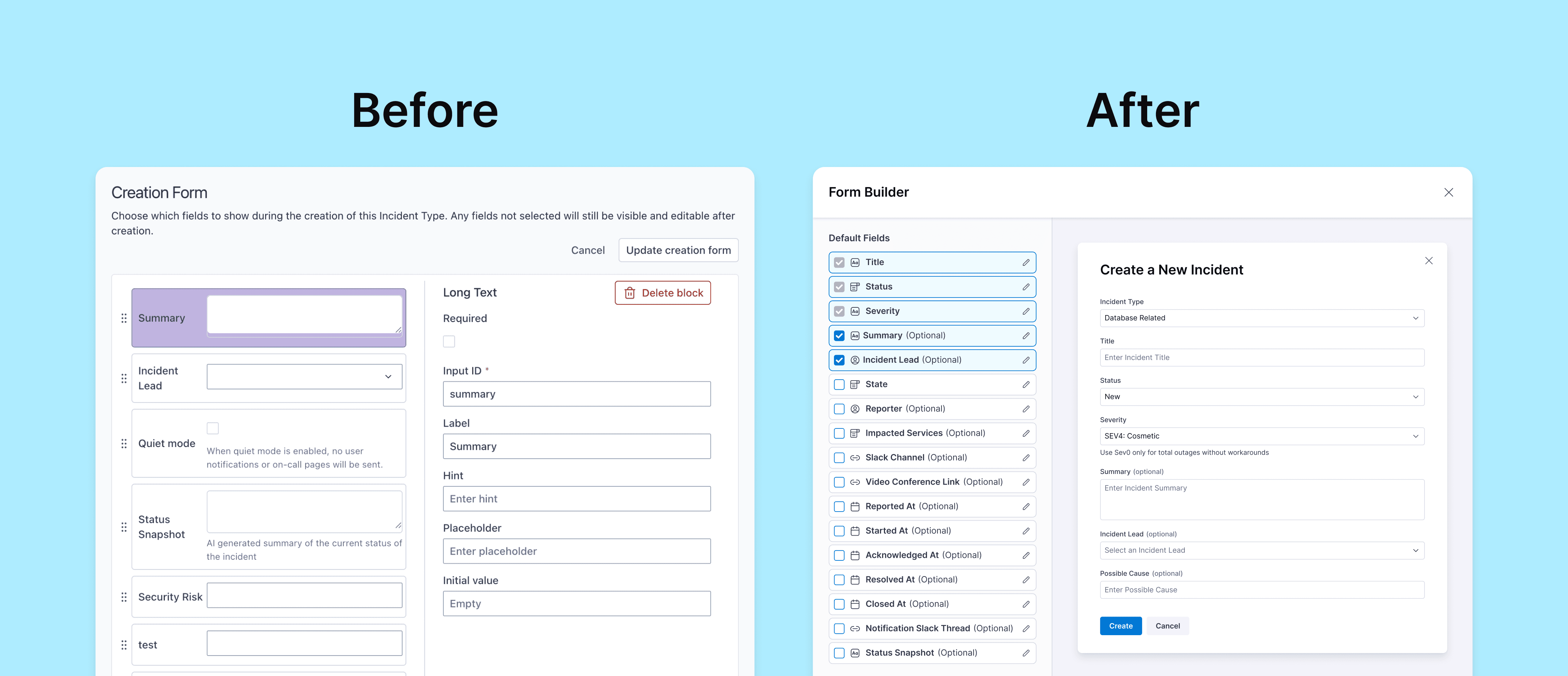

To prototype the more intricate interactions, I used Figma Make. The standard prototyping tools in Figma were not flexible enough for what I needed, such as live drag and drop with real-time preview updates. Figma Make also generates React code, which helped the front-end engineers get started more quickly. They could use it as a reference or as a lightweight starting template.

Real Feedback, Real Impact
While redesigning this experience, I spent time watching onboarding recordings from early beta customers. These were teams who had just started using Incident Response, and many of them struggled with setting up incident types. I saw where they got stuck, what confused them, and how they worked around the limitations of the old design.
Later, when we demoed the new prototype to those same customers, their reaction was immediate. They said things like "This would’ve helped us so much" and "I wouldn’t have needed to trouble Ryan (Implementation Engineer/ PM) for that long with this". They wanted to know when they could get it. It was clear that the redesign addressed real friction and made the setup process far less intimidating.
That kind of feedback is why I care about getting the details right. By simplifying the configuration flow and making the creation form more intuitive, we helped reduce setup friction and gave teams a much smoother path to getting started. It made their work easier, more predictable, and honestly, just a little more delightful.